
Manual chapter
Import and Export
Move data with generic CSV, Road Trip imports, Fuel Warrior CSV packages, and Fuel Warrior backup archives.
CSV Import
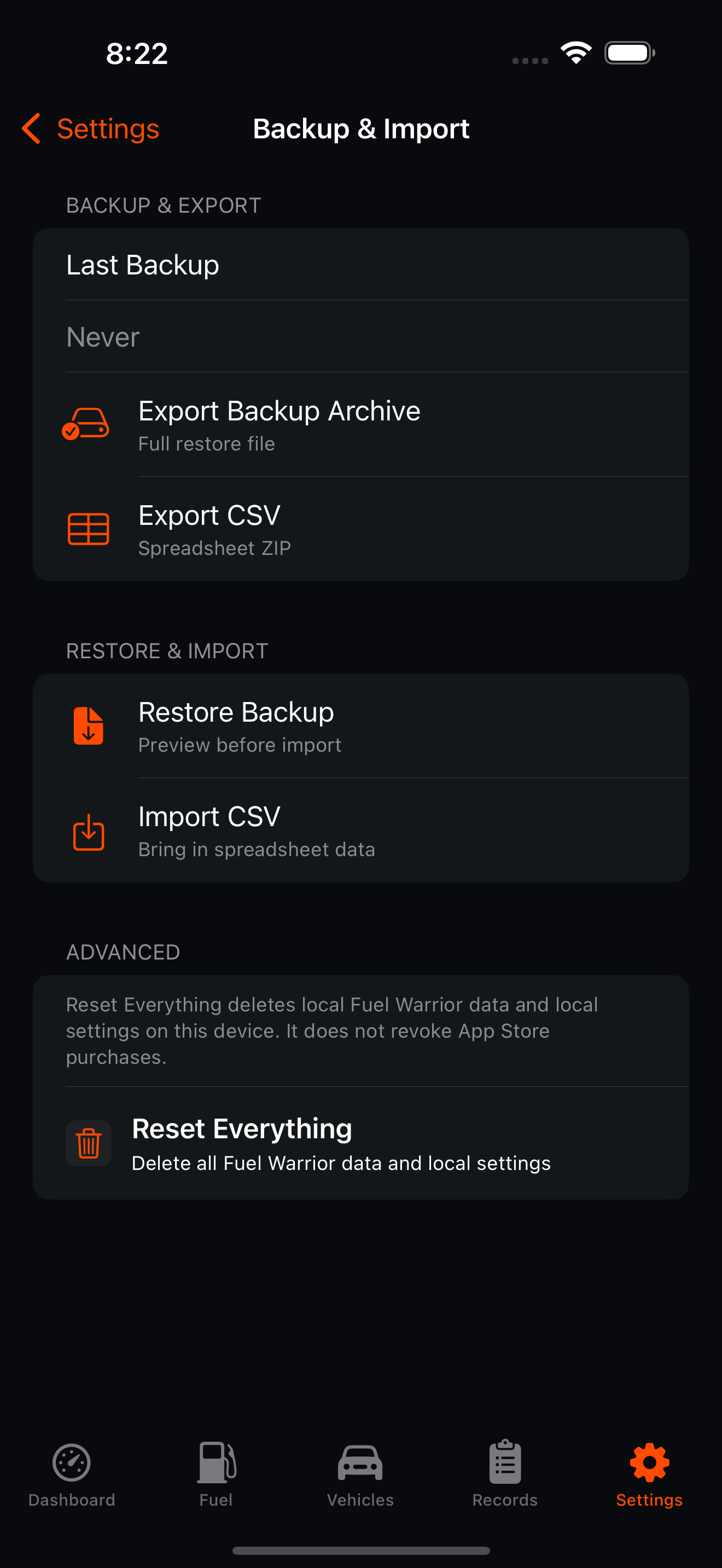
Use Settings > Sync & Sharing > Backup & Import > Import CSV to choose a spreadsheet or supported import file. Use Restore Backup when you are restoring a Fuel Warrior backup archive. Both actions preview supported files before saving data. For generic CSV, map required fields and preview rows before importing.
CSV Export
CSV export creates a portable ZIP archive for spreadsheets or migration. The package includes metadata, vehicles, fuel logs, maintenance logs, records, categories, tags, and settings CSV files.
Fuel Warrior Backup Files
Use Settings > Sync & Sharing > Backup & Import > Export Backup Archive to create a .fuelwarriorbackup file. Backup archives include schema version, export date, app/build information, vehicles, fuel logs, maintenance logs, records, tags, categories, and safe settings.
Merge vs Replace
Merge imports new items and skips matching existing IDs. Replace deletes existing local vehicles, fuel logs, maintenance, and records before importing. Replace can be blocked if it would remove a shared vehicle the current user does not own.
Migration Guidance
Use the migration path carefully so older history stays auditable and reversible.
- 1 Export from the old app as CSV.
- 2 Import into Fuel Warrior using Merge.
- 3 Review vehicle, fuel log, and cost totals.
- 4 Fix mappings if needed.
- 5 Export a Fuel Warrior backup archive after migration.
- 6 Enable sync only after verifying imported data.